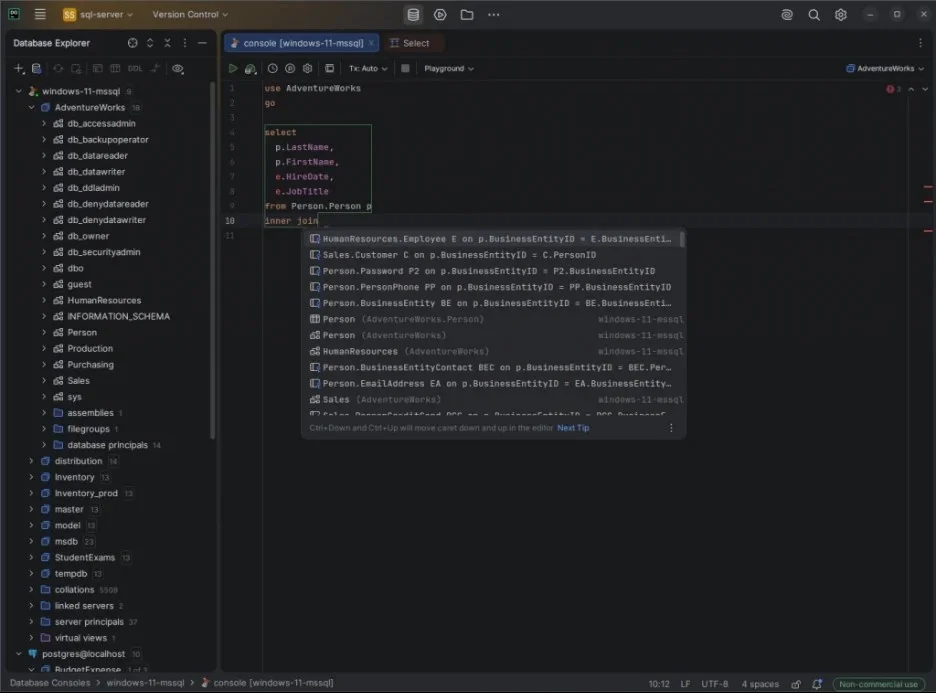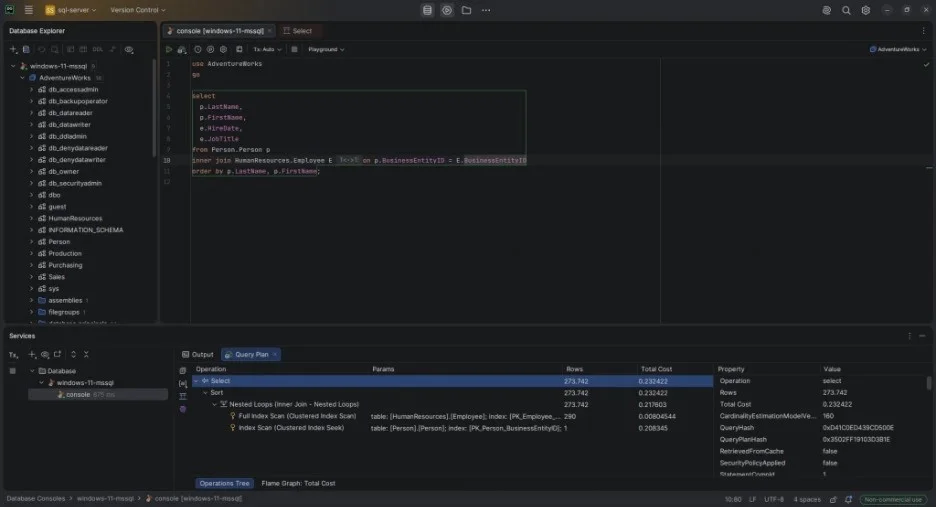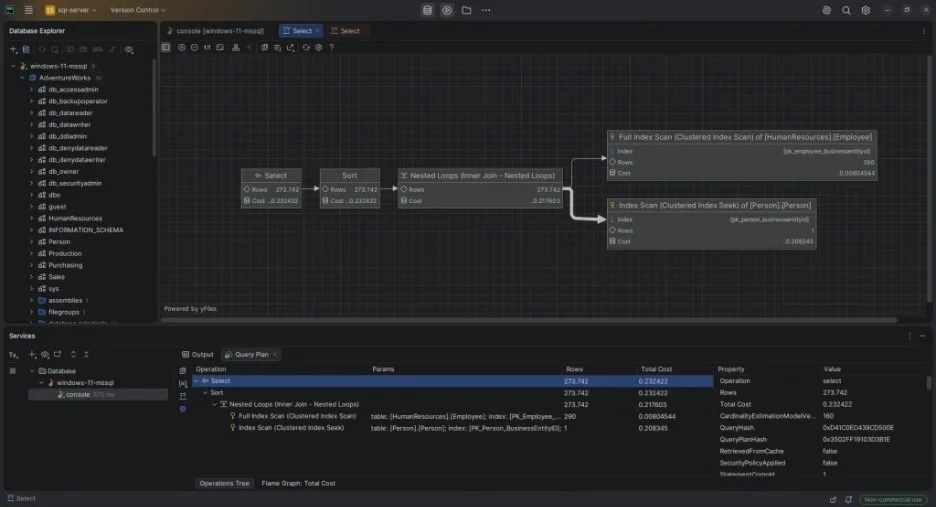

Let me guess. You’re not here to tick boxes of SQL Server IDE feature list. I suppose that you are here because you simply want to have a good day working on your databases.
Similar to you, my life revolves around IDEs, and I want fast-running queries and streamlined deployments. I know tools affect how quickly we work. After all, I have experienced many kinds of IDEs, from SQL Server 7.
While some IDEs were barely an enhanced command line interface or Notepad, others had automation, code ergonomics for today’s developer, and even cross-platform capabilities.
Cloud databases offer an alternative to scaling rapidly over the internet. Its features of database management and storage can attract organizations looking to expand their scalability limitations. The cloud database market size is expected to balloon to USD 73.03 Billion by 2033, as per a Coherent Market Insights report. It is projected to exhibit a 15.9% CAGR over the forecast period (2026-2033).
As databases increasingly move to cloud environments, the tools used to develop and manage them also need to adapt. In this guide, I will compare dbForge Studio for SQL Server, SSMS, and DataGrip based on the criteria that I think matter most in everyday SQL Server development work.
Let’s begin.
Hands-On Evaluation Criteria
The best SQL Server IDE isn’t a theory or an idea; it is based on practical experience accumulated over many hours spent using the software.
I’ve done schema design and modifications, optimized queries, dealt with deployment issues, and solved bugs in those IDEs. The SQL Server developer environment is something I know inside out.
The following reviews don’t focus solely on a developer’s point of view, since there are times when I step out of that role and act as a data analyst and do some administration on our development machine. Therefore, SQL Server development tools are reviewed considering several angles – developer, DBA, and analyst.
Let me tell you what matters most to me for SQL Server development tools.
What Really Matters When Choosing a SQL Server IDE
Your daily activities related to your work with SQL Server can easily get boring and repetitive. That’s why choosing the right IDE matters when designing, developing, tuning, or managing databases. The following criteria will make you consider certain IDEs seriously.
Query Development and Debugging
Our work with SQL Server databases consists of writing queries and running them. The modern way of doing these should not feel like issuing commands in SQLCMD or coding in a plain text editor.
We should write our queries efficiently with auto-complete capabilities and syntactic checking. And when something goes wrong, we can’t debug our queries through a series of PRINT statements.
Modern SQL IDEs also have AI to help explain what a query does and why errors have occurred.
Why It Matters in Your Daily Life: You usually spend most of your time working with queries; hence, you should catch errors quickly and refine your queries.
Schema and Database Management
Every application grows over time, and, of course, its underlying database grows too. You add, remove, or change columns or even create new tables. You may also write new or change already existing stored procedures and functions.
Diagrams are not on paper. You won’t have to write the script to compare schemas in your development and live environments (I used to do that). You should easily manage your database from version 1 to version x and synchronize smoothly. These features should be covered by a good SQL Server IDE.
Why It Matters in Your Daily Life: You constantly make schema changes, and you want everything to be done easily and avoid errors.
Performance Analysis and Optimization
You cannot guess why a certain query takes so much time to complete. Therefore, our choice of SQL Server IDE will depend on the presence of graphical execution plans, which can explain how the query engine created such a plan, and provide performance metrics to help you optimize your queries.
Modern IDEs also have AI to make performance suggestions like adding an index.
Why It Matters in Your Daily Life: Optimization and tuning of databases is vital for developers, DBAs, and analysts. So, you need a tool that can show you all about query behavior and save hours on tuning.
Automation and Repetitive Task Handling
Automations of routine actions like deployment, comparisons, and database backup will help you to save valuable time.
Why It Matters in Your Daily Life: Your manual routine actions are repetitive and waste time. It also increases the risk of mistakes. Meanwhile, automation frees you from these.
Cross-Platform and Remote Work Support
Cross-platform support allows you to work on any platform you prefer: Windows, macOS, or Linux.
Is your SQL Server hosted in the cloud? Then, you need a SQL Server IDE compatible with your cloud provider.
The continued growth of public cloud environments makes this compatibility increasingly relevant.
The public cloud segment is expected to account for 57.20% share of the cloud database market in 2026. The high infrastructure and maintenance costs of cloud server is likely to push this model to expand rapidly over the forecast period. Digital transformation initiatives and the pay-as-you-go model suited for business with peaking and plateauing demand can bode well for the segment growth.
Why It Matters in Your Daily Life: Modern teams are distributed, and IDEs should be flexible enough to these environments.
List of SQL Server IDEs Reviewed
I chose the best SQL Server IDE from the three tools I used and tried. These are dbForge Studio for SQL Server, SSMS, and DataGrip. I also tried DBeaver CE, Beekeeper Studio, and others, but the prior 3 are the ones that stuck with me.
Each IDE will be reviewed based on the same criteria discussed earlier. As a result, you’ll get a good comparison based on experience as a developer, DBA, and analyst working every day with the tool.
dbForge Studio for SQL Server
dbForge Studio for SQL Server is an IDE specifically designed for SQL Server development, management, and analysis tasks. It's an all-in-one, AI-powered solution that supports on-premises SQL Servers and cloud SQL Servers in Amazon RDS and Azure. This IDE is also part of the broader dbForge Edge ecosystem, a unified, multidatabase solution that supports all popular RDBMSs and a wide range of cloud services.
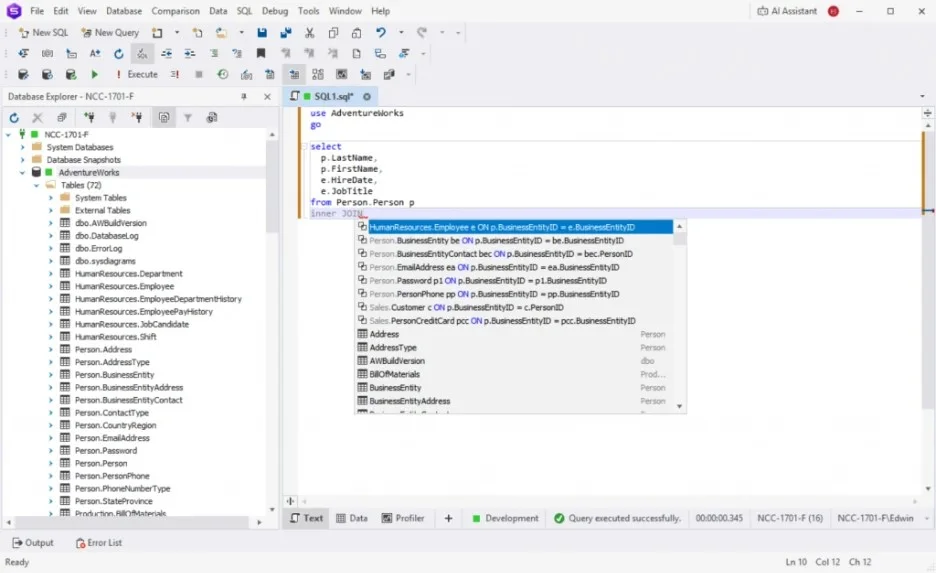
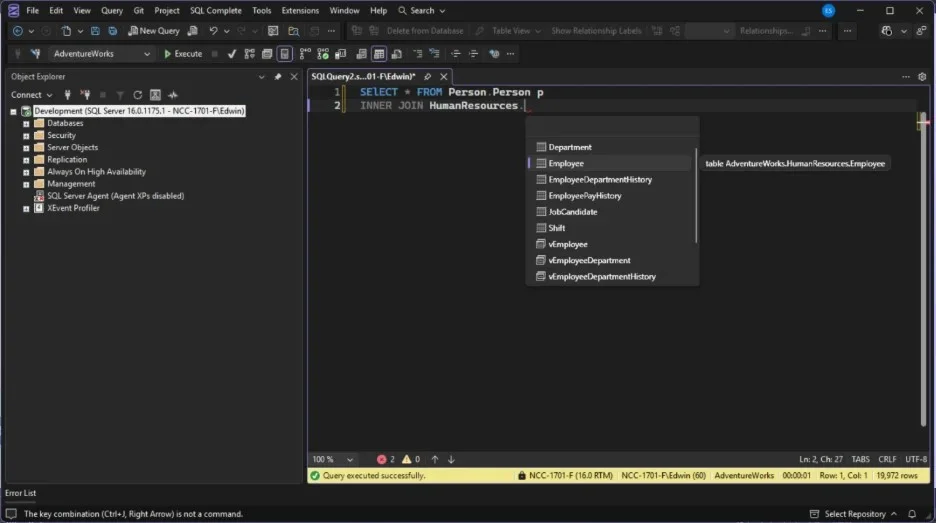
Below is a sample of its SQL coding assistance suggesting a table join:
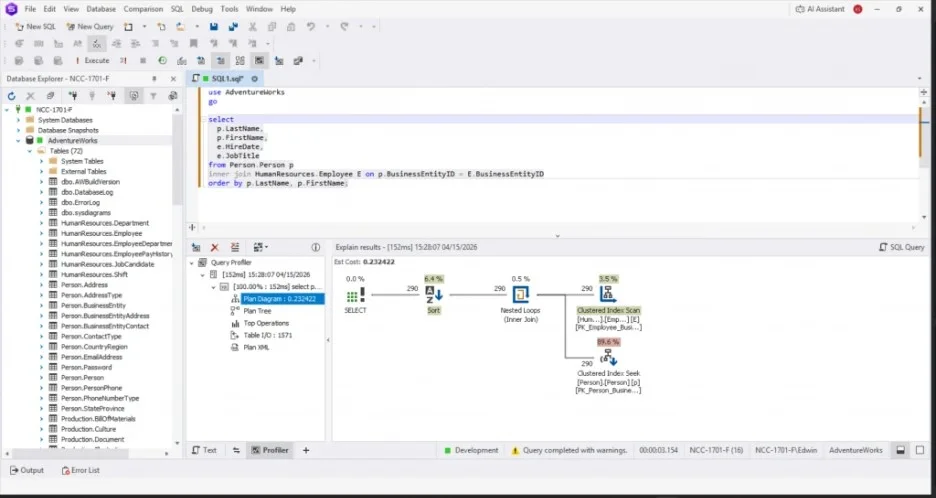
Meanwhile, below is the Query Profiler. It comes with the graphical execution plan, I/O statistics, plan tree, and more in one place.
Then, there’s the Schema Compare:
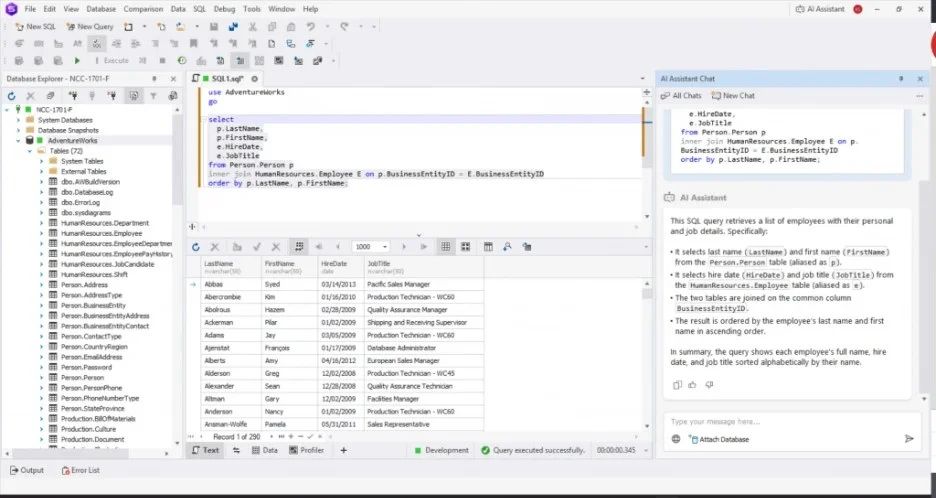
And finally, the dbForge AI Assistant explaining the query in layman’s terms:
Pros and Cons
- Query Development & Debugging
- Strength: It provides modern coding ergonomics, and the IDE understands SQL Server very well.
- Limitation: Debugger works only for SQL Server and not cross-engine. Use dbForge Edge to work with other popular relational databases.
- Schema & Database Management
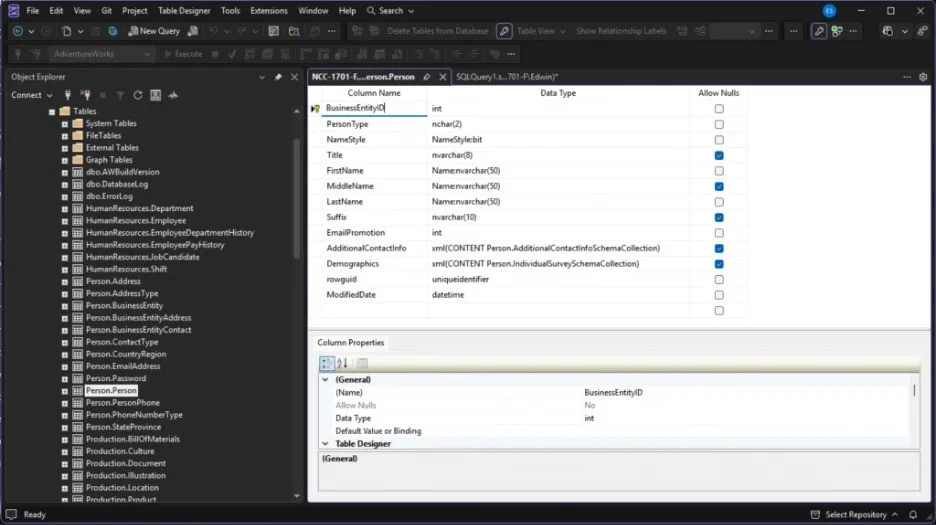
- Strength: The Database Diagram, Table Designer, Database Explorer, and the Schema and Data Comparisons streamline design and changes.
- Limitation: Schema and Data comparison features are available from the Professional Edition. While the full schema and data comparison features with version control, CLI, and automation are available in the Enterprise Edition.
- Performance Analysis & Optimization
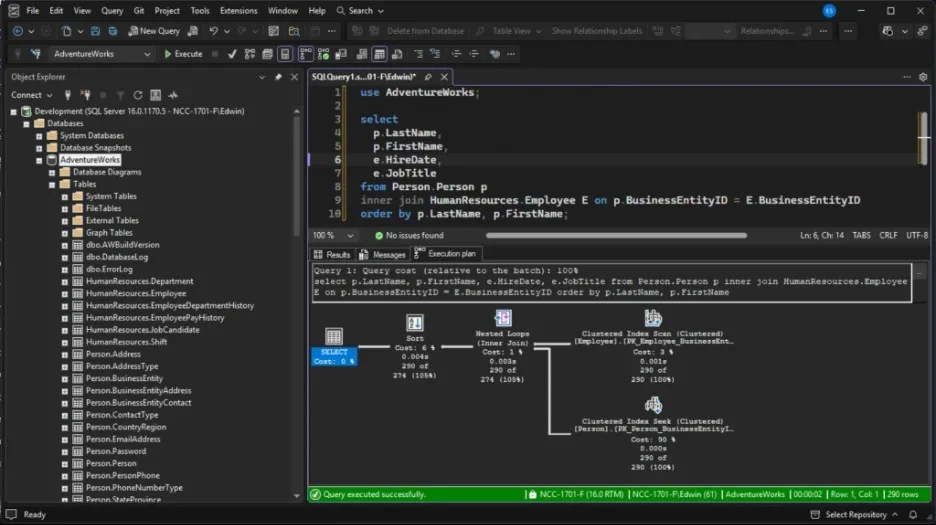
- Strength: Query Profiler and graphical Execution Plans, Comparison of several execution plans while modifying a query, and Server Event Profiler.
- Limitation: Not available in Express Edition
- Automation & Repetitive Tasks
- Strength: Automation of deployments, backups, imports/exports, schema/data comparisons.
- Limitation: Requires paid licensing for the full automation suite.
- Cross‑Platform Support
- Strength: Windows-native. Also runs on macOS and Linux through compatibility layers, like Crossover or WINE.
- Limitation: Compatibility layers may cause additional overhead
My Take: I particularly love the SQL coding assistance, Query Profiler, Schema Compare, and Data Generator – all time savers for my work.
Price
dbForge Studio for SQL Server is available in the free Express Edition with limited features, and subscription or perpetual licensing with Standard, Professional, and Enterprise Editions. The paid offering has a 30-day free trial.
Features
There are many features in dbForge Studio for SQL Server available for developers, DBAs, and analysts, including:
- SQL coding assistance like syntax check, code completion, snippets, formatter, refactoring, and more. (These I can’t live without)
- Database design features like database diagram, table and view designer, database documentation, object dependencies, and more.
- Sync features like schema and data comparison.
- Source control compatible to Git, GitHub, GitLab, Bitbucket, Azure DevOps, SVN and others.
- T-SQL Profiler, debugger, and unit testing.
- Administration features like database monitor, backup/restore, and more (this is gold when I’m wearing my DBA hat).
- Security manager for managing users, logins, roles and permissions.
- DevOps automation PowerShell cmdlets collections and Jenkins, Bamboo, TeamCity, Azure DevOps plugins.
- Data Generation (I love the close-to-realistic data generated for my load testing and for sample data).
- Data manipulation and reporting with the data editor, Visual Query Builder, Master-Detail, Pivot tables, and a report creation with automation. (For my ad-hoc reports and quick analysis)
- Import/Export to various formats.
- AI Assistant integration, and more.
Compatibility
dbForge Studio for SQL Server supports:
- SQL Server versions starting with SQL Server 2000.
- SQL Server running on Linux.
- On-premises installation and cloud installation at Amazon RDS, Azure, Heroku, Microsoft Fabric, and many more.
 Pros and Cons