A freshly set-up MacBook can go from clean to cluttered within a year of regular use, and the reasons are built into how macOS itself works. Every time a browser loads a new page, it stores scripts and style sheets in a local cache, so it loads faster on subsequent visits.
Every app update leaves behind fragments of the previous version. Documents edited repeatedly generate intermediate saved versions so that crashes do not result in data loss. All of this happens in the background, invisibly and continuously.
I went through this myself when my MacBook Pro started showing low storage warnings, even though I felt I hadn't saved that many new files. A quick scan revealed over 18 GB sitting in cache folders alone, most of it from apps I barely used.
That was the wake-up call that led me to start cleaning regularly. Here are five ways that have worked for me when removing junk files and clutter on Mac.
1.Clear your app and system caches
Caches are the single largest source of junk on most Macs. Every app you use, from Spotify to Slack to the Finder itself, stores temporary data in the Library folder to speed things up. Over time, that data goes stale, but the files stay put.
To clear the cache on your app and system cache on Mac, follow these steps
Open Finder.
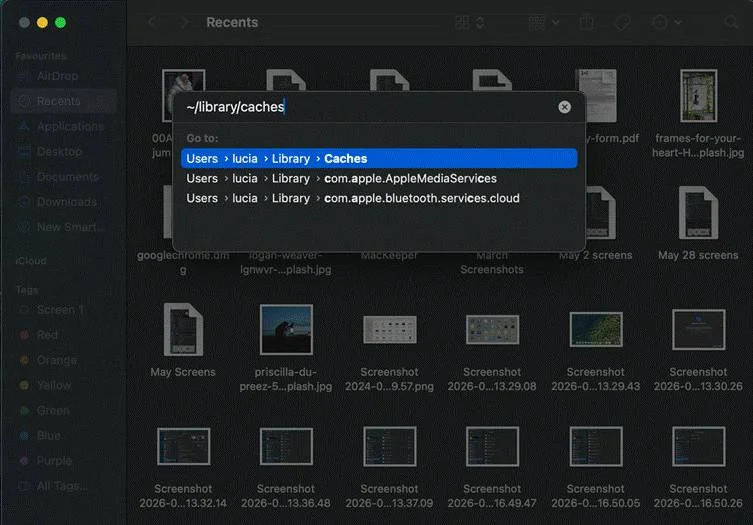
Press Shift + Command + G.
Type ~/Library/Caches and hit Enter.
What opens is a folder full of subfolders, each belonging to a specific app or process. The right move is to open each subfolder and delete the files inside it, not the subfolder itself. Apps will regenerate what they need the next time they launch.
Do the same for system-level caches. These accumulate separately and are just as worth clearing. Close all running apps before you start, so nothing is actively writing to a file you are trying to remove. Once done, empty the Trash to actually recover the space.
2.Delete temporary files and system logs
Temporary files are a category of clutter that often gets overlooked because they are invisible to casual browsing. macOS and third-party apps create them constantly to store data mid-process, but rarely clean them up once they serve their purpose.
There are different ways to delete temporary files on Mac—both manually and automatically. The simplest way to clean temp files on Mac is to go the manual route, especially for system logs.
Simply open Finder and Press Shift + Command + G. From here, type in ~/Library/Cachesand delete the temporary files and their folders.
These folders hold records of processes and errors that macOS generates continuously. Older logs have no practical value for the average user and can be deleted without any side effects. The system will generate new ones as it runs.
If you prefer the Terminal, the command sudo periodic daily weekly monthly runs macOS maintenance scripts that automatically flush temporary files. Follow my path to do so
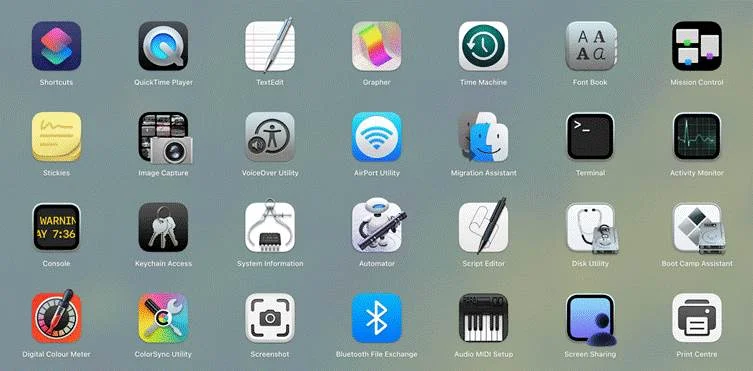
Open Terminal from inside the Other folder in Launchpad.
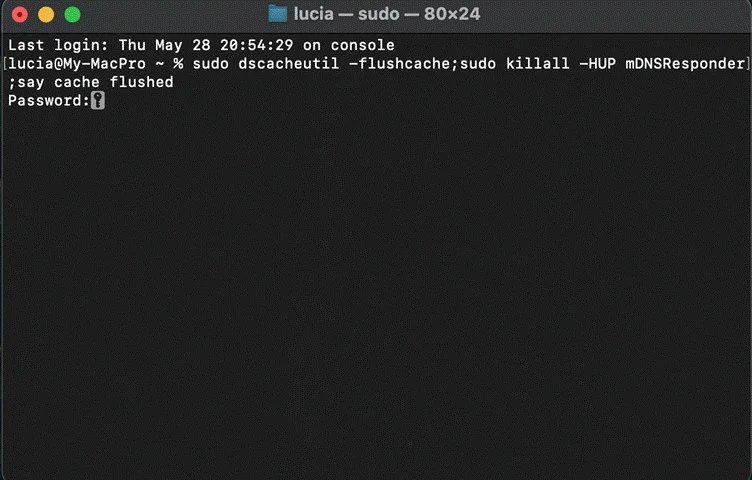
Type the sudo dscacheutil -flushcache;sudo killall -HUP mDNSResponder;say cache flushed command.
Hit Enter, then enter your system password if prompted.
3.Sort through the downloads folder
The Downloads folder is one of the most cluttered spots on any Mac. Installation packages, email attachments, and ZIP archives all land here by default and stay until you manually remove them. A work MacBook can accumulate gigabytes of stale downloads within weeks.
Go through the Downloads folder periodically and delete anything that no longer needs to be there. This includes installation packages for apps that are already set up, old document versions, duplicate PDFs, and media files that exist elsewhere on the machine.
Sorting by file size first makes it easy to spot the biggest offenders right away. After clearing it out, empty the Trash to actually free up the space.
4.Remove old iOS backups
Whenever an iPhone or iPad is backed up to a Mac (as opposed to iCloud), a full backup file is written to the local storage. These backups use extra storage on your Mac, and older backups with outdated data are basically useless once you have a newer one.
To find and delete old iOS backups, open Finder on your Mac and select the connected device in the sidebar. From here, navigate to the Manage Backups option.
Alternatively, go directly to ~/Library/Application Support/MobileSync/Backup/ and delete older backup folders manually. Keeping only the most recent backup is the right call in most situations. Older backups can take up anywhere from 5 GB to well over 20 GB, making this one of the fastest single steps for recovering meaningful storage space.
Keeping a Mac clean long term
Removing junk and clutter once is useful. Doing it consistently is what keeps a Mac running well. I now set a reminder every two months to go through the Caches and Downloads folders, and the difference in day-to-day performance has been noticeable. The machine stays snappy, storage stays manageable, and I no longer see those frustrating low-disk-space alerts.
A few habits that help
Empty the Trash regularly, not just when storage is critically low.
Uninstall apps that are no longer in use, not just drag them to the Trash, since apps leave behind support files in the Library folder.
Use iCloud to offload documents and Desktop files so they do not consume local storage.
Final thoughts
A cluttered Mac is not a broken Mac. It’s simply one that needs attention, and the fix is well within reach without any special tools or expertise. Following the steps above, from cache clearing and deleting browser data to ditching old back-ups and duplicate files, you will recover GBs of storage and ensure your machine feels faster than ever.
The key is making cleanup a habit rather than a one-time rescue mission. Even spending twenty minutes every couple of months working through these steps keeps the system lean and responsive. I truly believe that a well-maintained MacBook lasts longer, performs better, and stays far less frustrating to use every single day. Try it yourself.
Disclaimer: This post was provided by a guest contributor. Coherent Market Insights does not endorse any products or services mentioned unless explicitly stated.
Share this story
L
About Author
Lyubov Ovdiy
As an SEO copywriter at NEYTIRI, Lyubov Ovdiy creates content focused on SEO, SaaS, Technology, Digital Marketing, and Business Development. Her goal is to help brands showcase their expertise through content that benefits both readers and search engines.
Interested in industry outlook for Storage Systems Market?Request Free Sample